Project
Note:
- On startup Walrus creates a "default" project, which is owned by the admin user.
- All project names within the system must be unique.
View Project List
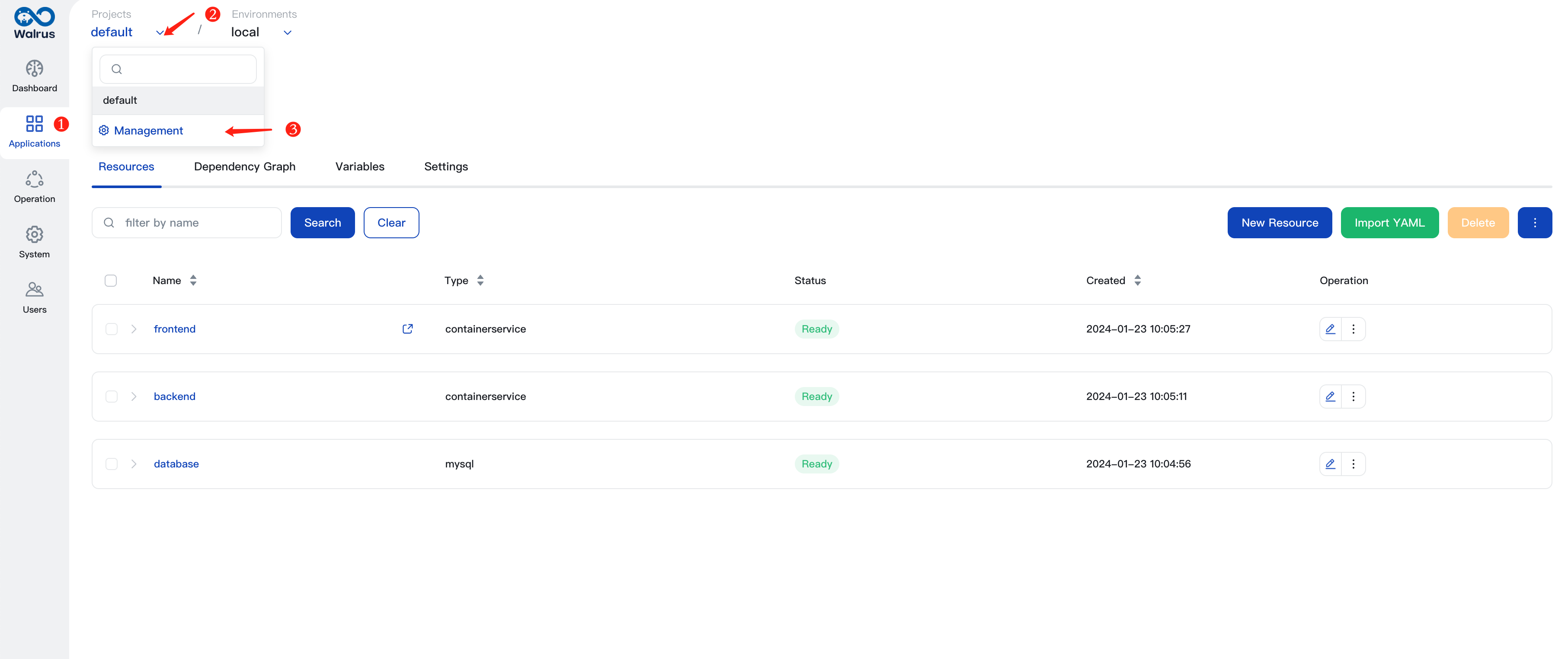
Click Applications on the navigation bar, then click the Project dropdown menu at the top, and click Manage to enter the project list.
Create Projects
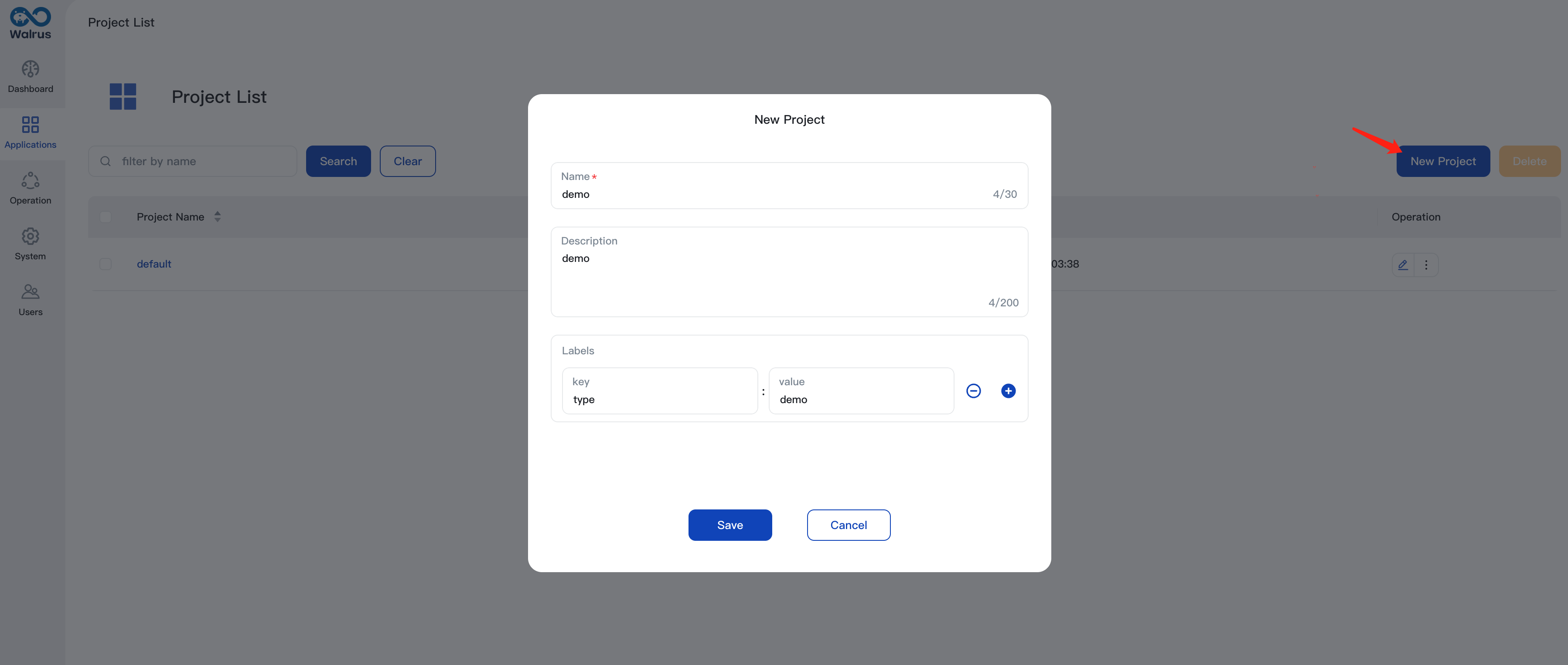
- Enter the project list.
- Click
Create New Project, input the "Name" and "Description", and add "Tags".
Enter Projects
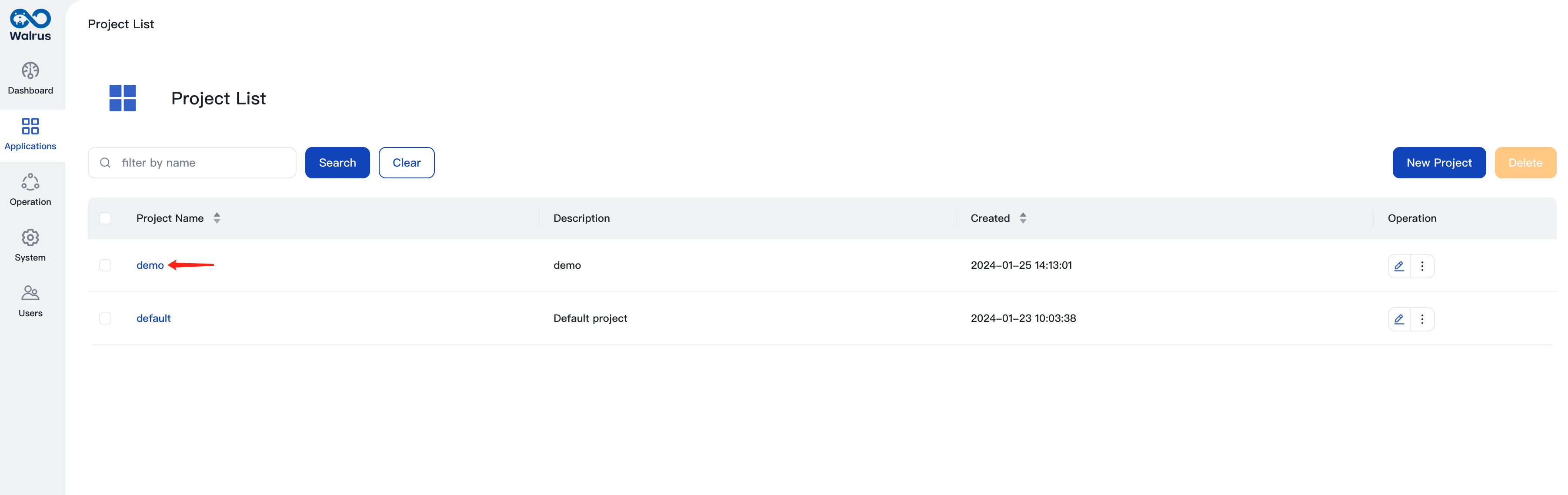
You can enter projects in the following two ways:
- If you are in the "Project List", click the project name to enter the corresponding project page.
- If you are already in a specific project, click the
Projectdropdown menu at the top, select the project name to enter the corresponding project page.
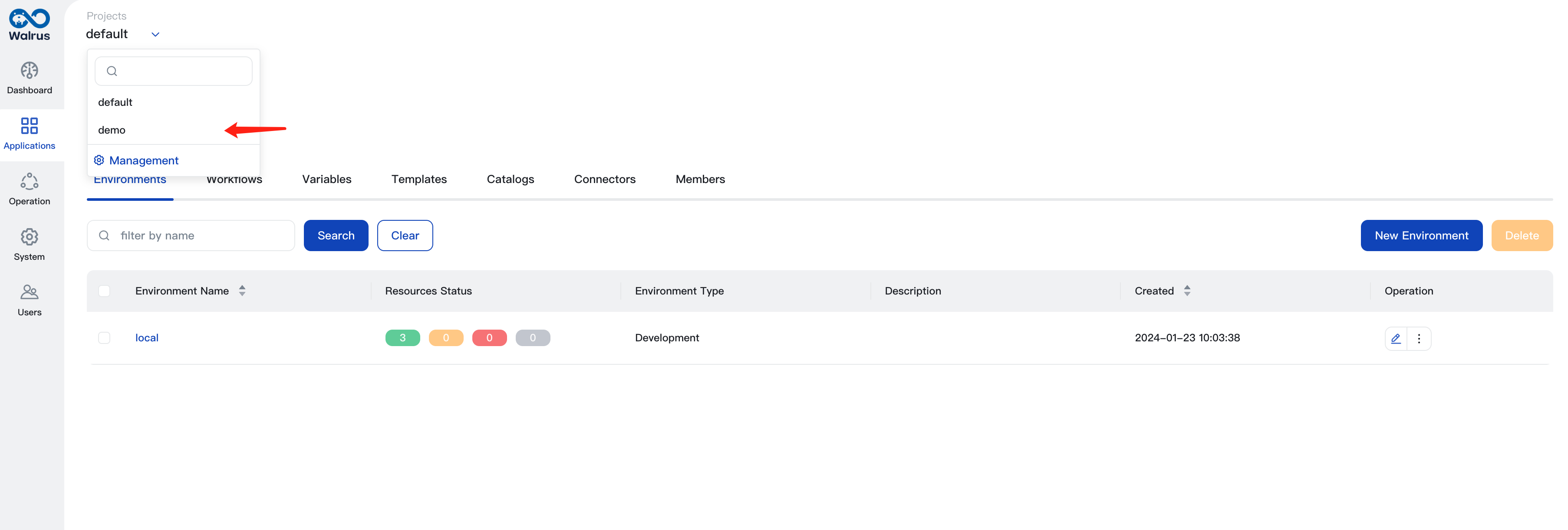
Search Projects
In the "Project List" page or the search box of the Project dropdown menu, enter the project name, press enter, and conduct a fuzzy search based on the project name.
Edit Projects
- Enter the "Project List".
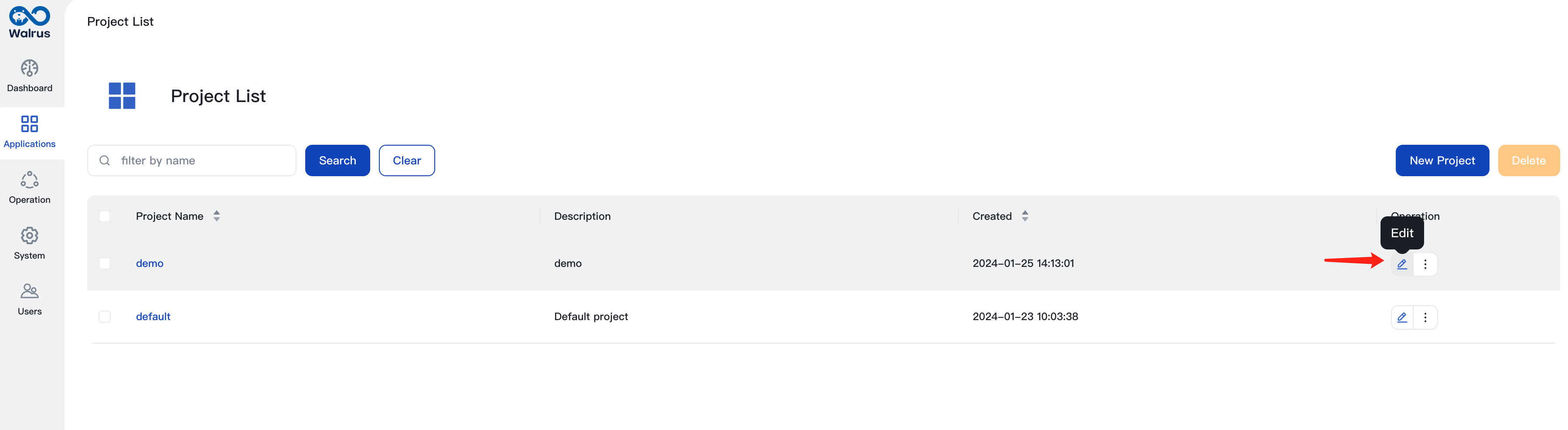
- Click
Editon the line of the project to be modified, select to change the "Name", "Description" or "Tags". - Click
Saveto complete the modification.
Delete Projects
- Enter the "Project List".
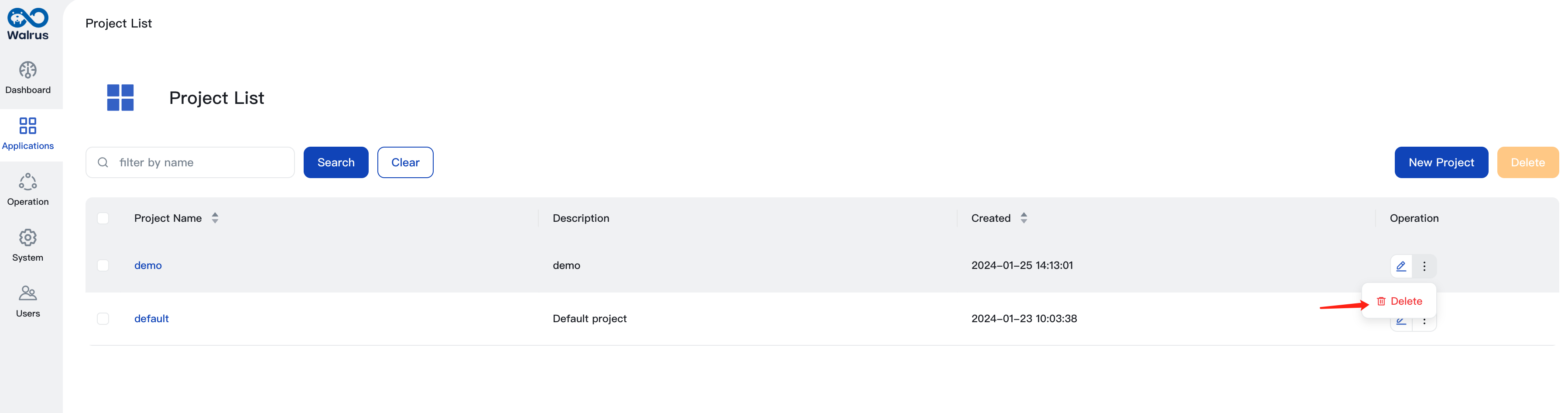
- Check the projects to be deleted, click
Delete, and confirm deleting in the pop-up window, to complete the deletion.
Note:
- If there are still environments under the project, the deletion of the project will fail.
Environment Management
In the project view, click the Environment tab to manage environments.
Variable Management
In the project view, click the Variable tab to manage variables.
Connector Management
In the project view, click the Connector tab to manage connectors.
Template Management
In the project view, click the Template tab to manage templates.
Catalog Management
In the project view, click the Catalog tab to manage catalogs.
Member Management
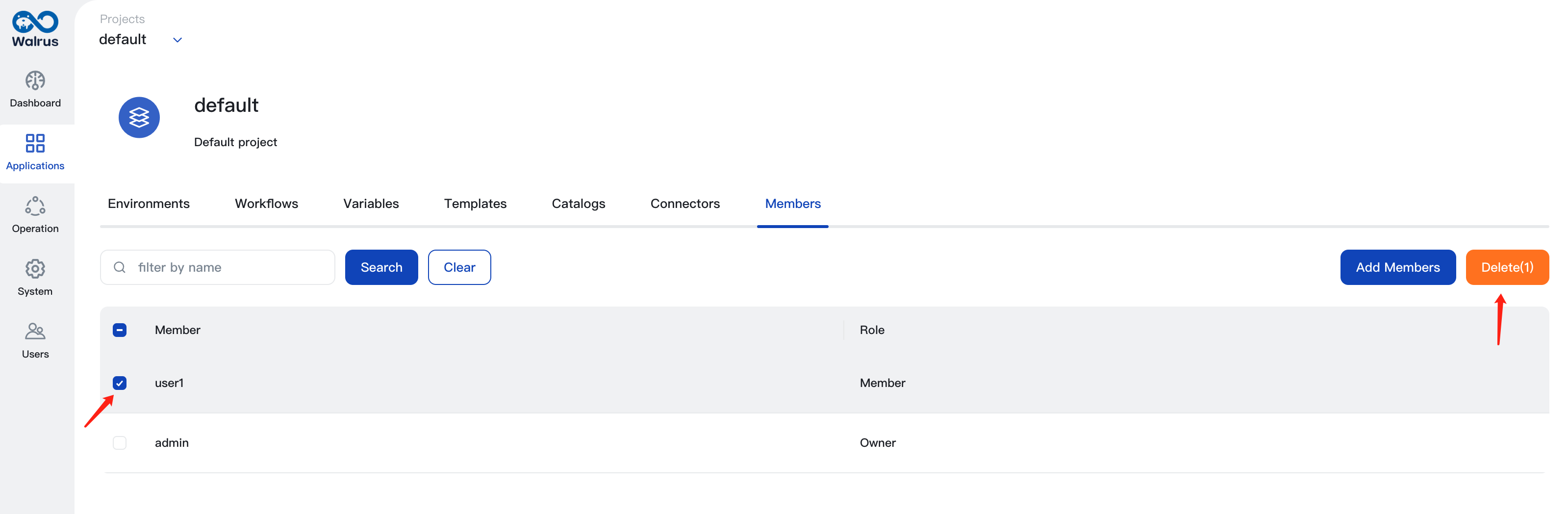
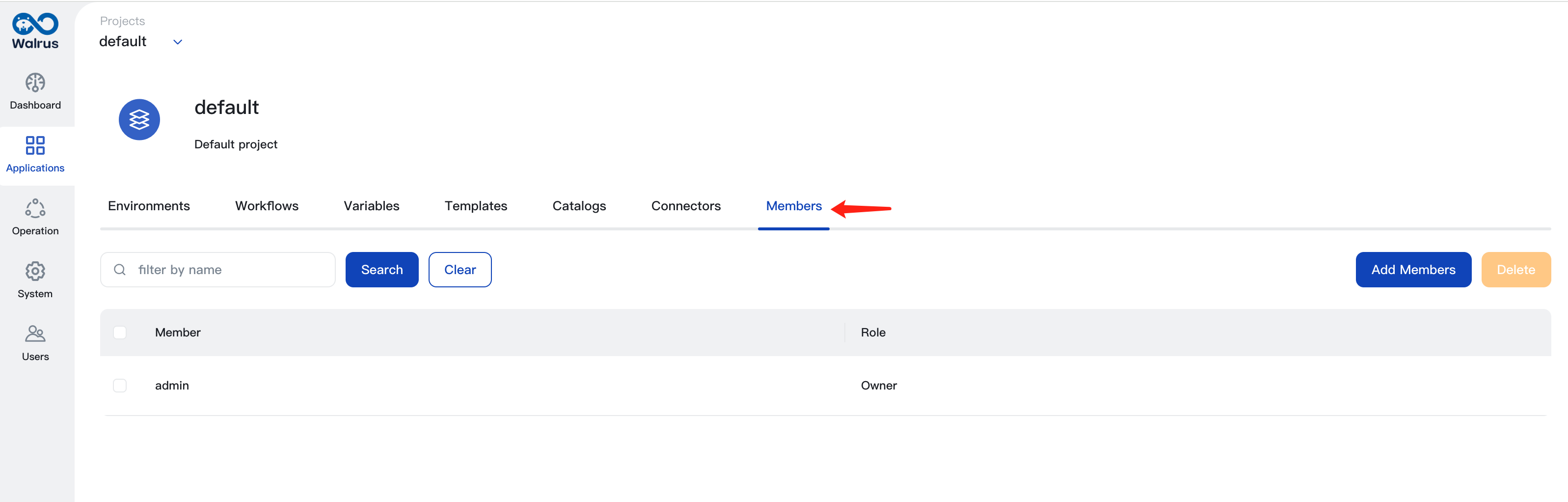
In the project view, click the Members tab to manage the members.
Search Members
Enter the member (user) name, click Search to conduct a fuzzy search based on the username.
Add Members
- In the
Memberstab, clickAdd Member. - After
selecting the userandassigning the role, clickAddto complete the adding.
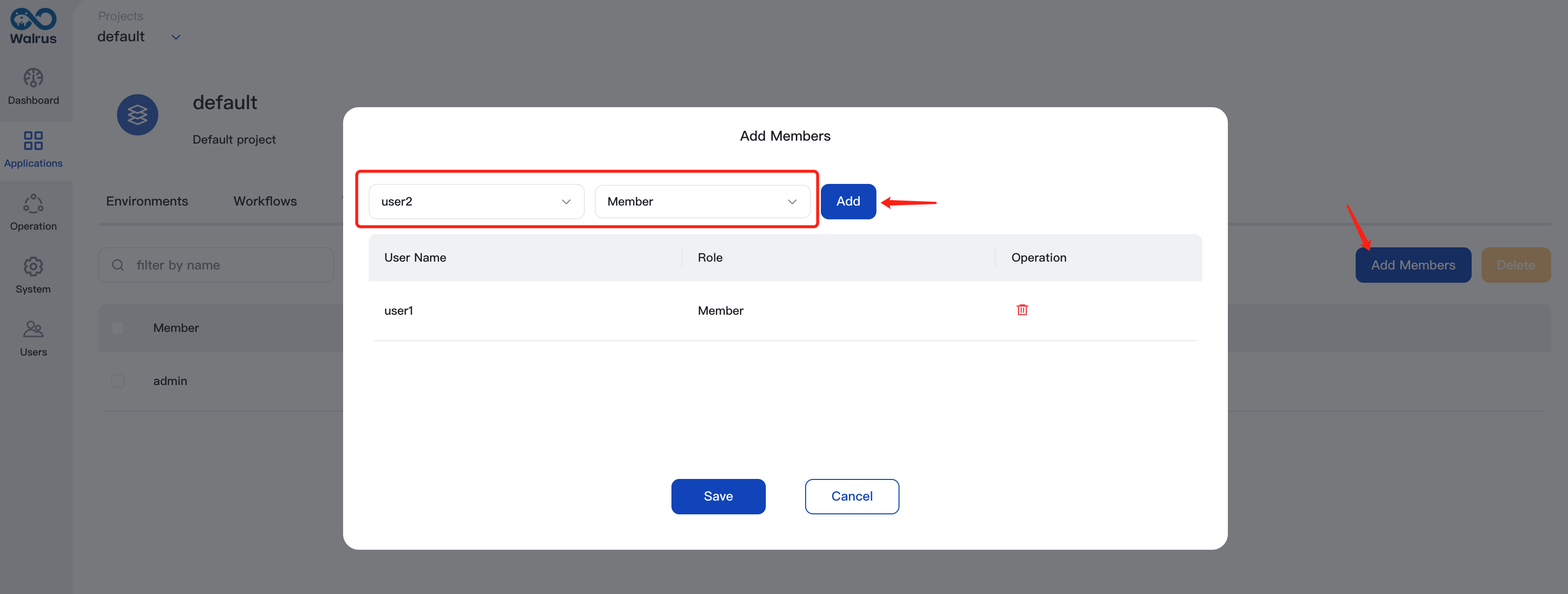
Currently, the system provides 3 kinds of project user roles, which are Viewer, Member, and Owner.
- Viewer: Can only read the resources at the project level.
- Member: Can manage the configuration of resources at the project level, such as creating services, configuring variables, changing connectors, etc.
- Owner: Has the highest authority of the project, in addition to managing the configuration of project resources, they can also manage project members. The admin is usually the owner of all projects.
Delete Members
Click Delete on the line of the member to be deleted, confirm deleting in the pop-up window, to complete the deletion.